AI Presentation Maker: Build a Deck in Minutes, Then Make It Yours
How to use an AI presentation maker well: briefing it, structuring the story, one idea per slide, editing text and images, speaker notes, exporting to PowerPoint and rehearsing, with common mistakes.
On this page
A blank slide deck is one of the most intimidating things in office life. An AI presentation maker removes that problem: give it a topic, and a minute later you have structured slides, key points, images and speaker notes. What it doesn't give you is your story, your numbers or your voice. The best results come from treating the output as a fast first draft, then shaping it into something only you could present.
What an AI presentation maker does#
An AI presentation maker turns a topic or outline into a slide deck, with a title and key points for each slide, supporting images, a consistent design and speaker notes, ready to edit and export.
The Tekservix AI presentation maker builds structured slides with key points, an AI image on each slide, clean themes and speaker notes, and exports a PPTX you can edit in PowerPoint, Google Slides or Keynote.
Brief it like a colleague#
"Presentation about my business" produces a generic deck. A short brief produces a useful one:
- Audience: who will be in the room? Investors, a bank, a client's management team, new staff, a school assembly.
- Goal: what should they do or decide afterwards? Approve a loan, sign a contract, adopt a process.
- Length: the number of slides or minutes.
- Key facts: the numbers, dates and names that must appear.
- Tone: formal, friendly, energetic, calm.
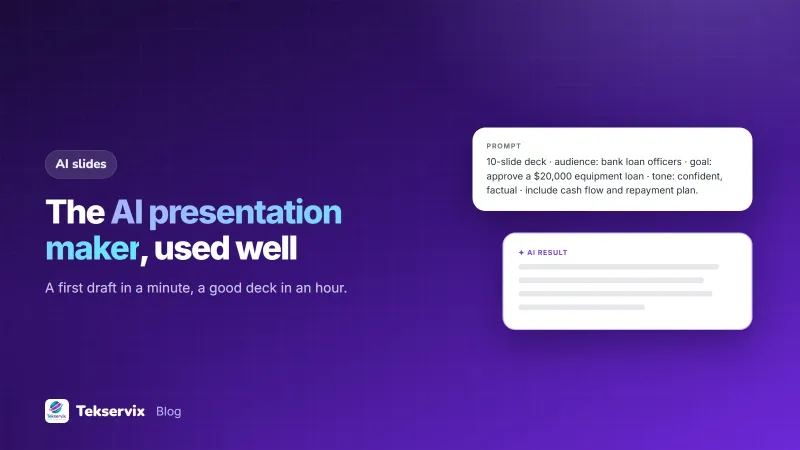
Example: "10 slides for bank loan officers. Goal: approve a £20,000 loan for a bakery oven. Include current sales, the cost of the oven, the expected increase in output, cash flow and repayment plan. Tone: confident and factual."
Check the story before the slides#
Before polishing anything, read only the slide titles in order. Together they should tell the whole story in one breath. A common structure for business presentations:
- The situation or problem.
- Why it matters now.
- Your solution or proposal.
- Evidence: numbers, examples, results.
- The plan: steps, timeline, costs.
- Risks and how you'll handle them.
- The decision or action you want.
If a title doesn't move the story forward, cut the slide or merge it. Our guide to pitch deck structure covers the investor version in detail.
One idea per slide#
AI tools tend to fill slides with bullet points. Audiences read faster than you speak, so a slide full of text means they stop listening. Edit each slide down:
- A title that states the point, such as "Sales grew 40% after we added delivery", not just "Sales".
- Three bullets at most, a few words each, or one number, one chart or one image.
- Detail in the speaker notes, not on the slide.
The widely quoted 10/20/30 rule (ten slides, twenty minutes, no font smaller than 30 points) is a good sanity check, even if you don't follow it exactly.
Replace generic content with your own#
This is where a deck stops looking AI-made:
- Put in your real numbers. Check every figure the tool wrote; never present a number you can't source.
- Use your own examples: a real customer story (with permission), a real photo of your product or team.
- Cut filler phrases such as "in today's competitive landscape". Say the specific thing instead. Our guide to making AI writing sound human helps here.
- Swap images that don't fit. AI images are great for mood and concepts; use real photos for anything the audience should believe is real.
Use the speaker notes#
Speaker notes are one of the most useful parts of an AI-generated deck. Rewrite them in your own words as what you'll actually say: the story behind the number, the example, the transition to the next slide. Keep them to a few lines per slide, so you glance rather than read. If you're sending the deck to people who weren't in the room, the notes also make it understandable on its own.
Design: simple and consistent#
- Keep the theme the tool chose, or switch to your brand colours and fonts, but use one theme throughout.
- Make text large enough to read from the back of the room.
- Use charts for trends and comparisons, not tables of numbers.
- Put your logo on the first and last slides, not every one.
- Leave empty space. A slide doesn't need to be full to be finished.
Export and check#
Export to PowerPoint, then open the file where you'll present it: your laptop, the client's computer, or a shared screen. Check that fonts display correctly, images are sharp, and nothing overflows its box. Save a PDF version as a backup, and bring it on a USB stick or in your email in case the presenting computer lacks PowerPoint.
Rehearse#
A deck is only half the presentation. Run through it out loud at least twice, with a timer. You'll find slides that need a better transition, points you can cut, and places where you need a number you don't have yet. Rehearsing also shows whether your speaker notes are useful or just a script you'll read.
Common mistakes#
- Presenting the AI draft without editing it.
- Too many slides for the time available.
- Reading bullet points aloud word for word.
- Numbers that don't match your financial records.
- Images of people or places that look real but aren't, used as evidence.
A worked example#
Imagine a bakery owner preparing to ask a bank for an equipment loan. The AI presentation maker produces a 10-slide draft from the brief in about a minute. The owner rewrites the titles so each states a point ("A second oven doubles our morning output"), replaces the placeholder figures with real sales and cash flow numbers from the accounts, swaps a generated bakery image for a photo of the actual shop, and turns the speaker notes into short prompts. After two timed rehearsals, one slide on market trends is cut because it added nothing. The final deck takes about an hour to finish, not a weekend, and it tells the bank exactly what they need: the loan, the plan and how it will be repaid. For images to use in decks, see our guide to AI image prompts.
Frequently asked questions
What does an AI presentation maker do?
It turns a topic or outline into a set of slides with titles, key points and often images, plus speaker notes. You then edit the content, adjust the design and export the deck, often as a PowerPoint file.
Can I edit an AI-generated presentation in PowerPoint?
Yes, if the tool exports a PPTX file, as the Tekservix AI presentation maker does. You can then change text, images, layout and theme in PowerPoint, Google Slides or Keynote.
How many slides should a presentation have?
As few as the story needs. For a 10-minute talk, 8 to 12 slides is typical. It's better to spend a minute on a slide that makes one clear point than to rush through thirty crowded ones.

Tekservix Team
The team behind Tekservix
The Tekservix Team builds and supports Tekservix: WhatsApp and SMS APIs, AI tools, invoicing, PDF and SEO tools for growing businesses. We write practical, tested guides based on what we see our customers do every day.
More articles from the Tekservix Team