How to Repurpose a Long Video into Shorts, Reels and TikToks
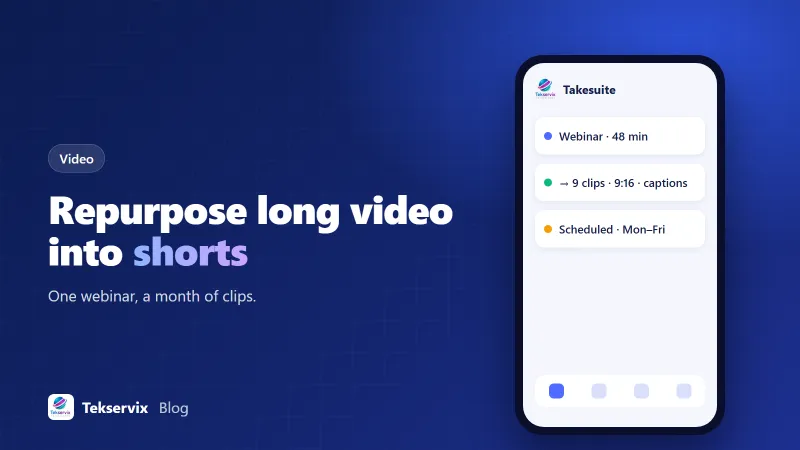
One webinar, podcast or product demo can become a month of short videos. Here's how to repurpose long video into Shorts, Reels and TikToks: picking moments, writing hooks, framing for vertical, captions and a posting plan.
On this page
- What makes good source material
- Step 1: find the moments
- Step 2: cut tight
- Step 3: write a hook for the first two seconds
- Step 4: reframe for vertical
- Step 5: add captions
- Step 6: titles, captions and links
- Step 7: schedule them out
- Posting the same clip on several platforms
- Plan for clips while recording
- Tools that do the cutting for you
- Start with your best video
You recorded a 45-minute webinar. Forty people watched it live, a few dozen more saw the replay, and now it sits on YouTube with a slowly growing view count. Inside it, though, are maybe ten moments that would make great short videos: a sharp tip, a surprising number, a customer question answered perfectly.
Learning to repurpose long video is one of the best returns on time in content marketing. You've already done the hard part, the thinking and the recording. Here's how to turn it into Shorts, Reels and TikToks that people actually watch.
What makes good source material#
Nearly any long recording can be clipped, but some give better results:
- Webinars and talks with distinct points or tips.
- Podcast episodes, especially with video, where guests tell stories or give opinions.
- Product demos, where each feature becomes its own clip.
- Interviews and Q&A sessions, where each answer can stand alone.
- Live streams and workshops.
The key ingredient is moments that make sense without the rest of the video. A clip that starts "As I said earlier..." won't work.
Step 1: find the moments#
Watch, or skim the transcript, and mark timestamps for:
- A clear, useful tip in under a minute.
- A strong opinion or a myth being busted.
- A story with a beginning and end.
- A surprising fact or number.
- A great answer to a common question.
- A visual "watch this" moment in a demo.
- Emotion: laughter, frustration, excitement.
Transcripts make this much faster. Search for phrases like "the biggest mistake", "here's the trick" or "most people don't realise". Speakers naturally signal good moments.
Step 2: cut tight#
Start the clip at the most interesting sentence, not the polite lead-in. Cut pauses, "um"s and tangents. End as soon as the point is made, ideally on a punchline or a clear takeaway. Most good clips land somewhere between 15 and 60 seconds, though there's no strict rule.
Step 3: write a hook for the first two seconds#
On short-form platforms, people decide almost instantly whether to keep watching. Your clip needs to earn attention in the first second or two, through what's said, what's shown and the text on screen.
- Text hooks: "The pricing mistake that cost us 3 clients" or "Stop doing this in your emails".
- Spoken hooks: start with the claim, not the context.
- Visual hooks: movement, a close-up, a result shown first.
Our guide to video hooks for Reels has more examples.
Step 4: reframe for vertical#
Most long videos are horizontal (16:9). Shorts, Reels and TikTok are vertical (9:16). Options:
- Crop to the speaker, following them if they move.
- For two-person interviews, stack the speakers top and bottom, or cut between them.
- For screen recordings, crop to the part of the screen that matters, and zoom in on small details.
- Avoid simply shrinking the horizontal video into the middle with big blurred bars, unless the content truly needs the full frame.
Keep important visuals and text in the centre. Each app puts buttons, captions and usernames around the edges and bottom.
Step 5: add captions#
Many people watch with the sound off. Large, readable captions keep them watching and make clips accessible. Auto-generated captions save time, but always proofread names, numbers and technical terms. A misspelt product name in your own caption looks careless.
Big, high-contrast text with a few words on screen at a time works better than a full sentence at the bottom in small type.
Step 6: titles, captions and links#
Each clip needs a post caption that adds context and a reason to act: "Full webinar on our YouTube channel", "Get the checklist at the link in bio" or a question that invites comments. Adjust hashtags and wording for each platform rather than pasting the same text everywhere. Our guide to social media captions covers this.
Step 7: schedule them out#
Don't post all ten clips on the same day. Spread them over two or three weeks, mixing them with your other content. That gives each clip room to perform and keeps a steady presence without new recording. Note which clips do best. The topics and hooks that work tell you what to make your next long video about.
A content calendar helps here. Our article on scheduling social media posts explains how to batch a month of clips in one session.
Posting the same clip on several platforms#
Cross-posting is normal. A few tips:
- Upload your original file to each platform, not a downloaded copy with another app's watermark.
- Check safe areas, since each app's interface covers a different part of the screen.
- Write a caption suited to each audience. LinkedIn viewers expect different wording from TikTok viewers.
- Watch performance per platform; a clip that flops on one can do well on another.
Plan for clips while recording#
Once you've clipped a few videos, you'll start recording differently. Small habits make the next batch much easier: state each point in a complete sentence that makes sense on its own, pause briefly between sections, and repeat the question before answering it in a Q&A. Frame the speaker with space above their head so a vertical crop doesn't cut them off. None of this makes the long video worse, and it can halve the editing time.
Tools that do the cutting for you#
Doing all this by hand in a video editor works, but it's slow: finding moments, cropping, captioning and exporting each clip can take an hour or more per video. AI clipping tools speed it up by transcribing, suggesting moments, reframing to vertical and adding captions automatically. You still review and choose, but you start from a draft rather than a blank timeline.
Takesuite includes a video atomizer that does exactly that. Drop in a talk or demo and get vertical 9:16 clips of the best moments with big captions and a hook title, as clean MP4s, then check them with the pre-publish hook score and schedule them in the same calendar. It's included on the Creator plan from $19 a month, and the free plan lets you try the scheduling and approval side first.
Start with your best video#
Pick the long video that got the most positive feedback, not the most recent one. Pull five clips from it this week, using the steps above, and schedule them a few days apart. You'll quickly see which kinds of moments work for your audience, and that will make every future recording more useful from the start.
Frequently asked questions
How long should short clips be?
Most work best between about 15 and 60 seconds. Shorts, Reels and TikTok all allow longer videos now, but a short clip with one clear idea usually holds attention better than a long one.
How many clips can I get from one long video?
It depends on the content. A 30 to 60 minute talk or podcast with several useful points often gives 5 to 15 good clips. Choose quality over quantity: a weak clip spends your audience's attention.
Can I post the same clip on TikTok, Reels and Shorts?
Yes, many creators do. Upload the original file rather than a download with another app's watermark, adjust the caption and hashtags for each platform, and check text isn't hidden behind each app's buttons.

Tekservix Team
The team behind Tekservix
The Tekservix Team builds and supports Tekservix: WhatsApp and SMS APIs, AI tools, invoicing, PDF and SEO tools for growing businesses. We write practical, tested guides based on what we see our customers do every day.
More articles from the Tekservix Team