Website Security Checklist for Businesses (No Jargon)
A practical website security checklist for businesses: HTTPS, updates, admin logins, backups, plugins, forms, hosting, security headers, monitoring and what to do if your site is hacked.
On this page
- 1. Use HTTPS everywhere
- 2. Keep everything updated
- 3. Remove what you don't use
- 4. Lock down admin logins
- 5. Make backups you've actually tested
- 6. Choose plugins and code carefully
- 7. Protect your forms
- 8. Keep secrets out of public places
- 9. Add security headers
- 10. Pick hosting that takes security seriously
- 11. Watch for trouble
- 12. Have a plan for a bad day
- A worked example
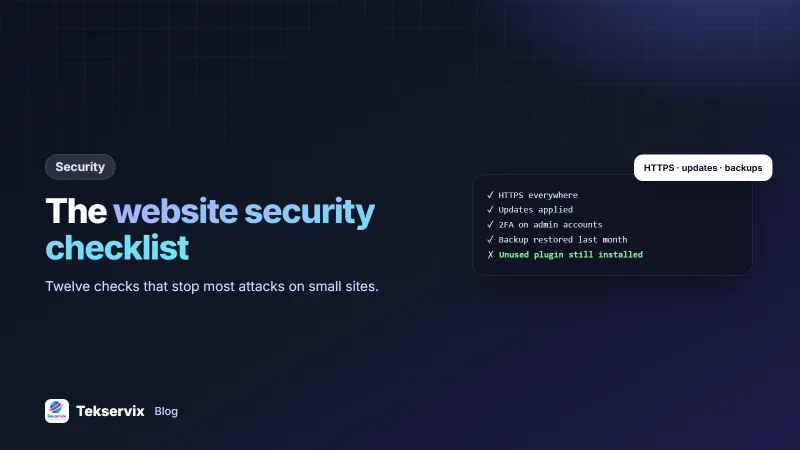
Business websites rarely get hacked because someone chose them. They get hacked because an automated scanner found an old plugin, a reused admin password or a forgotten test page, and the site was one of thousands hit that day. That's good news: the attacks are generic, so the defences are too. This website security checklist covers the checks that stop most of them, written for owners and small teams rather than security specialists.
1. Use HTTPS everywhere#
Every page should load over HTTPS, with the padlock and no browser warnings. Redirect every http:// address to https://, renew certificates automatically (most hosts do this with free certificates), and fix any "mixed content", where a secure page loads images or scripts over plain HTTP. The page audit in Tekservix SEO tools flags pages not served over HTTPS, and its Lighthouse report includes a best-practices check.
2. Keep everything updated#
Most successful attacks on small sites use known holes in outdated software. Update:
- The core platform, such as WordPress, Joomla or your shop software.
- Every plugin, theme and extension.
- The server software, if you manage your own server: PHP, the database, the operating system.
Turn on automatic updates for minor and security releases. Check monthly for anything that needs a manual update.
3. Remove what you don't use#
Every plugin, theme, old test page and forgotten admin account is something an attacker can try. Delete, don't just deactivate, plugins you no longer use. Remove old staging copies of the site, sample files left by installers, and user accounts for staff and freelancers who have left.
4. Lock down admin logins#
- Unique, long passwords for every admin account. Our guide to a strong password generator explains what "strong" really means.
- Two-factor authentication on every account that can change the site.
- Individual accounts for each person, with the lowest role that lets them do their job. An editor doesn't need administrator rights.
- Limited login attempts, so bots can't guess passwords endlessly.
5. Make backups you've actually tested#
A backup is only real once you've restored it. Set up:
- Automatic daily backups of files and the database for sites that change often; weekly for simple sites.
- Copies stored away from the web server, so a hacked or failed server doesn't take the backups with it.
- Several weeks of history, because some attacks go unnoticed for days.
- A test restore every few months, onto a staging copy.
6. Choose plugins and code carefully#
Before installing anything, check it's actively maintained, widely used and updated recently. Avoid "nulled" or pirated premium plugins, which often contain hidden malware. If someone writes custom code for you, ask how they handle user input and database queries; the OWASP Top 10 is the standard list of the web application risks they should know.
7. Protect your forms#
Contact, booking and login forms are the most attacked parts of a small site. Validate input on the server, not just in the browser, use a honeypot or similar check against bots, and limit how often one visitor can submit. Our guide to lead generation forms covers spam protection that doesn't annoy real visitors.
8. Keep secrets out of public places#
API keys, database passwords and payment credentials belong in server configuration or environment files, never in public code, JavaScript files or a Git repository. Make sure files like .env, backups and database dumps can't be downloaded from the web. Our API key security guide explains how.
9. Add security headers#
A few HTTP response headers tell browsers to block common attacks: forcing HTTPS, stopping your pages being framed by other sites, and limiting where scripts can load from. They're a small configuration change for whoever manages your hosting. Our guide to HTTP security headers lists the ones that matter and safe starting values.
10. Pick hosting that takes security seriously#
Good hosting isolates your site from other customers, keeps server software patched, offers backups and a firewall, and answers support requests quickly. Very cheap shared hosting often fails on at least one of these. If you can't tell, ask the host directly how they handle each.
11. Watch for trouble#
- Verify your site in Google Search Console, which emails you if Google detects malware or hacked content.
- Set up uptime monitoring so you know within minutes if the site goes down.
- Glance at admin user lists and recently changed files once a month.
Our SEO audit checklist doubles as a monthly health check.
12. Have a plan for a bad day#
Write down, before you need it, what you'll do if the site is hacked:
- Put the site into maintenance mode.
- Change every password: hosting, admin accounts, database, email.
- Restore a clean backup from before the attack.
- Update everything and close the hole that let the attacker in.
- Check for and remove any admin accounts or files the attacker added.
- Tell affected customers if personal data may have been exposed. The GDPR in the EU and UK has breach notification duties, as do similar laws elsewhere.
A worked example#
Imagine [Shop name], an online store built on WordPress four years ago by a freelancer who has since moved on. The owner works through this checklist on a Saturday. They find 23 plugins, 9 of them inactive and two not updated in three years; an admin account still belonging to the freelancer; and backups stored only on the same server. They delete the unused plugins, replace one abandoned plugin with a maintained alternative, remove the old account, turn on two-factor authentication, and set up daily backups to separate storage, testing a restore the same afternoon. None of it needed a security specialist, and the site no longer has the weak points automated attacks look for first.
Frequently asked questions
How do I check if my website is secure?
Start with the basics: the site loads over HTTPS with no warnings, the software and plugins are up to date, admin accounts use strong unique passwords with two-factor authentication, and you have a recent backup you've actually restored. Then run a scan or audit to catch anything you missed.
How often should a business website be backed up?
At least daily for sites that change often, such as shops and booking sites, and weekly for brochure sites. Keep copies somewhere other than the web server, and test a restore every few months, because an untested backup may not work when you need it.
What should I do if my website is hacked?
Take the site offline or put it in maintenance mode, change all passwords, restore from a clean backup made before the attack, update everything, and find how the attacker got in so it doesn't happen again. Tell customers if their data may have been exposed, as the law may require.

Tekservix Team
The team behind Tekservix
The Tekservix Team builds and supports Tekservix: WhatsApp and SMS APIs, AI tools, invoicing, PDF and SEO tools for growing businesses. We write practical, tested guides based on what we see our customers do every day.
More articles from the Tekservix Team