Two-Factor Authentication Explained: Which Method to Use and How to Set It Up
Two-factor authentication in plain terms: how it stops account takeovers, SMS codes vs authenticator apps vs passkeys and security keys, backup codes, SIM swap risks, and how to roll it out in a business.
On this page
Passwords leak. They're reused, guessed, phished and sold in bulk after data breaches. Two-factor authentication, usually called 2FA, means a stolen password alone isn't enough to get into your account: the attacker also needs something you physically have, usually your phone. It takes a minute to set up per account and stops the vast majority of account takeovers. The US Cybersecurity and Infrastructure Security Agency calls it one of the most effective steps you can take; its guide to multi-factor authentication makes the case well.
This article explains the methods, which to choose, and how to avoid locking yourself out.
How 2FA works#
Security people group sign-in proof into three kinds:
- Something you know: a password or PIN.
- Something you have: your phone, a security key.
- Something you are: a fingerprint or face.
Two-factor authentication combines two different kinds. A password plus a code from your phone is 2FA. Two passwords are not, because both can be stolen the same way.
The methods, from weakest to strongest#
SMS or WhatsApp codes#
The service texts a one-time code to your number. It's familiar and works on any phone. The weakness is the phone number itself: in SIM swap fraud, a criminal convinces or bribes someone at a mobile operator to move your number to their SIM, then receives your codes. Phishing pages can also trick you into typing a fresh code. Still far better than a password alone. Our guides to SMS OTP verification and WhatsApp OTP cover this method from the business side.
Authenticator apps#
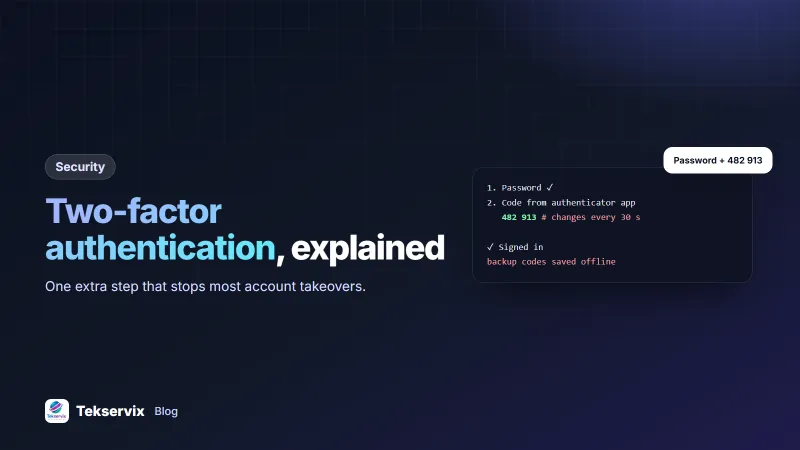
Apps such as Google Authenticator, Microsoft Authenticator or a password manager generate a six-digit code that changes every 30 seconds. You link the app once by scanning a QR code. Codes are created on your phone, so SIM swaps don't affect them. This is the best balance of security and convenience for most people.
Push approvals#
Some services send a "Is this you signing in?" prompt to their app. Convenient, but attackers sometimes spam prompts hoping you'll tap "Yes" to make them stop. Approve only sign-ins you started, and prefer prompts that ask you to type a number shown on screen.
Passkeys and security keys#
Passkeys, built into modern phones and computers, and physical security keys use cryptography tied to the real website. A fake login page can't use them, so they resist phishing completely. Use them wherever offered, especially for email and admin accounts.
Which accounts first#
- Email. It resets every other password, so it's the master key.
- Banking and digital wallets web or app logins.
- Your website, hosting and domain registrar. Losing these can take your business offline.
- Social media and WhatsApp (WhatsApp calls it two-step verification: a PIN for re-registering your number).
- Accounting, payroll and supplier portals.
- Cloud storage holding contracts and customer data.
Backup codes: the step everyone skips#
When you turn on 2FA, most services show a list of one-time backup codes. They're your way back in if your phone is lost, stolen or broken. Save them:
- Printed or written down and kept somewhere safe at home, or
- In a password manager, separate from the account they unlock.
Not in a photo on the same phone, and not in an email to yourself. If you've already turned on 2FA without saving them, most services let you generate a new set in security settings. Do it today.
Turning it on: a typical setup#
- Open the account's security settings and choose two-factor authentication, two-step verification or "sign-in with code".
- Pick an authenticator app if offered.
- Scan the QR code with the app, or type the setup key.
- Enter the six-digit code to confirm.
- Save the backup codes.
- Sign out and back in once to check it works.
On Tekservix, this lives in account settings: scan the QR code with any authenticator app, confirm with a code, and keep the backup codes it gives you. From then on, signing in asks for a code from the app after your password.
Rolling out 2FA in a business#
- Start with shared, high-risk accounts: email admin, website, domain, banking.
- Give each person their own login wherever the service allows it, so 2FA belongs to a person, not a shared phone.
- Keep a recovery plan: who holds backup codes for business-critical accounts, and where.
- Remove access on the day someone leaves, including their authenticator enrolments.
- Train staff to never read a code to anyone who calls or messages them, whoever they claim to be.
Pair 2FA with strong, unique passwords from a password generator, stored in a manager; our guide to the zero-knowledge password manager explains what to look for, and the website security checklist covers the rest of your site.
Common mistakes#
- Turning on 2FA for social media but not for the email account that can reset it.
- No backup codes, then a lost phone.
- Reading a code aloud to a "bank officer" on the phone. No genuine company asks for it.
- Using a personal number for a business account, then losing it when the employee leaves.
A worked example#
Imagine the owner of [Shop name] who receives a "new sign-in" alert for the shop's email from another country. The password, reused from an old forum, had leaked. Because 2FA with an authenticator app was turned on a month earlier, the attacker got stuck at the code screen. The owner changes the password, checks the email's forwarding rules for tampering, and spends the afternoon turning on 2FA for the website, domain registrar and bank, saving every set of backup codes on paper in the office safe. The alert, which could have meant a hijacked business, ends up as a ten-minute scare.
Frequently asked questions
What is two-factor authentication?
Two-factor authentication (2FA) adds a second check when you sign in, on top of your password: usually a code from your phone or a tap on a security key. Even if someone steals or guesses your password, they can't get in without that second factor.
Is SMS two-factor authentication safe?
SMS codes are much safer than a password alone, but they're the weakest form of 2FA. Codes can be intercepted through SIM swap fraud or phishing pages. Use an authenticator app, passkey or security key for important accounts such as email and banking, and keep SMS as a fallback.
What happens if I lose my phone with my authenticator app?
You sign in with one of the backup codes you saved when you turned on 2FA, then set up the authenticator on your new phone. Without backup codes you'll need the service's account recovery process, which can take days, so store the codes somewhere safe when you first get them.

Tekservix Team
The team behind Tekservix
The Tekservix Team builds and supports Tekservix: WhatsApp and SMS APIs, AI tools, invoicing, PDF and SEO tools for growing businesses. We write practical, tested guides based on what we see our customers do every day.
More articles from the Tekservix Team