Android App Permissions Explained: What Your Business App Should Ask For
Every Android app has to declare and request permissions, and getting them wrong can mean refused prompts, bad reviews or a rejected update. Here's a plain-language guide to Android app permissions for business apps.
On this page
- How Android permissions work
- Normal permissions
- Runtime (dangerous) permissions
- Special and restricted permissions
- What a typical business app needs
- Ask at the right moment
- Handle "no" gracefully
- Google Play's rules
- Notifications on Android 13 and later
- Permissions and trust
- A quick permissions audit
- Building a business app?
The first time a new user opens your app, Android may show a dialog: "Allow this app to send you notifications?" or "Allow access to this device's location?" Tap the wrong moment, ask for the wrong thing, or ask for too much, and people say no. Some of them uninstall. Some leave a one-star review asking why a restaurant app wants their contacts.
Android app permissions aren't just a technical detail. They're one of the first trust signals your app sends. Here's how they work and what a typical business app should, and shouldn't, ask for.
How Android permissions work#
Every Android app lists the permissions it might use in a file called the manifest. Android then sorts them into a few groups.
Normal permissions#
Low-risk access, like using the internet, checking network status or vibrating the phone. They're granted automatically at install time. Users can see them on the app's store listing, but there's no prompt.
Runtime (dangerous) permissions#
Access to private data or sensitive hardware: location, camera, microphone, contacts, photos, phone, SMS and, since Android 13, notifications. The app must ask while it's running, and the user decides. They can allow, deny, or for location, choose "only while using the app" or approximate location.
Special and restricted permissions#
Powerful access like drawing over other apps, exact alarms, all-files access, background location, or reading SMS and call logs. These usually need the user to change a setting, and Google Play requires a declaration explaining why your app needs them. Many are rejected unless they're essential to the app's core feature.
What a typical business app needs#
A shop, booking, restaurant, news or member app usually needs surprisingly little:
- Internet and network state: normal permissions, granted automatically.
- Notifications: a runtime prompt on Android 13 and later, if you send push notifications.
- Camera: only if the app scans QR codes or lets people take photos, such as uploading an ID or a damaged item.
- Location: only for features like "find nearest store" or delivery tracking, and usually "while using the app" is enough.
- Photos: often not needed at all, because Android's photo picker lets users choose an image without granting broad access.
Things most business apps should not ask for: contacts, call logs, SMS, microphone (unless you have voice features), background location and all-files access.
Ask at the right moment#
When you ask matters as much as what you ask for. A prompt on first launch, before the user has seen anything, gets refused far more often than one that appears right when it's useful.
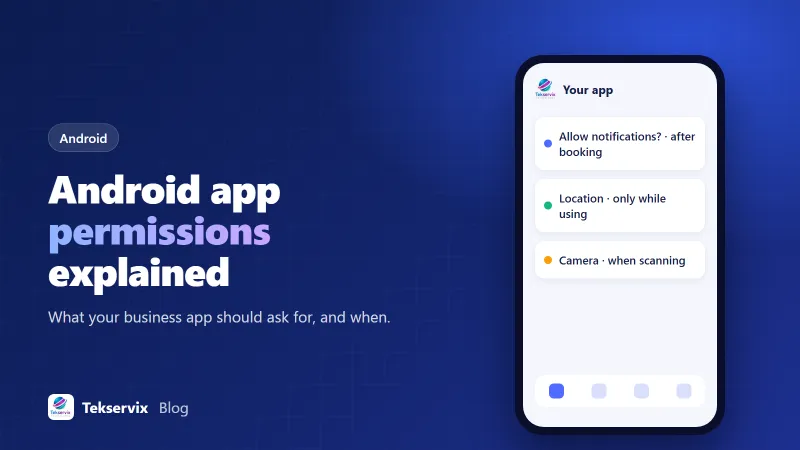
- Notifications: after someone books, orders or subscribes. "Want a reminder before your appointment?"
- Location: when they tap "Find nearest store".
- Camera: when they tap "Scan code".
A short explanation screen in your app's own design, just before the system prompt, helps people understand why. Our guide to app onboarding screens covers timing in more detail.
Handle "no" gracefully#
Users can deny any runtime permission, and if they deny it twice Android generally stops showing the prompt. Your app needs to keep working:
- If location is denied, let people search by postcode or city instead.
- If the camera is denied, offer manual code entry.
- If notifications are denied, show reminders in the app, and maybe offer email or SMS.
- If a feature truly needs the permission, explain why and offer a button to open the app's settings.
Also expect permissions to disappear. Users can revoke them in settings, and Android can automatically reset permissions for apps that haven't been opened for a few months. Check each time before using a protected feature.
Google Play's rules#
Google Play reviews permissions as part of its policies. A few points that catch business apps out:
- Restricted permissions need a Play Console declaration and a real, user-facing reason. SMS and call log permissions are especially strict.
- Background location requires a separate declaration, often a video showing the feature, and is frequently rejected for apps that only need location while open.
- Your Data safety form must reflect what the app and its SDKs collect. Location or contacts access that isn't declared can lead to a rejected update.
- Third-party SDKs can add permissions you didn't intend. Check the merged manifest before you publish.
If an update gets rejected, our guide to common Google Play rejection reasons walks through the usual fixes.
Notifications on Android 13 and later#
This one deserves its own section because it changed recently and catches many apps out. Before Android 13, apps could send notifications by default. From Android 13, apps that target the newer versions must ask with the POST_NOTIFICATIONS runtime permission, just like location or camera. If you never ask, your push notifications simply don't appear on those phones.
Users who upgraded from an older Android version may keep their existing notification setting for apps already installed, but new installs start without it. So if your push open rates dropped and you can't work out why, check whether the app actually requests notification permission, and when. Asking right after a booking or order, with a one-line reason, usually works far better than a prompt the moment the app opens.
Permissions and trust#
People do look. The store listing shows what an app can access, and reviews regularly call out apps that seem to ask for too much. A booking app asking only for notifications and, when needed, location feels respectful. The same app asking for contacts, microphone and storage on install feels suspicious, even if the developer had innocent reasons.
Fewer permissions also means less risk if something goes wrong. Data you never access can't leak. Our mobile app security checklist covers that side.
A quick permissions audit#
- List every permission in your app's merged manifest.
- For each one, name the feature that uses it. If you can't, remove it.
- For runtime permissions, check the prompt appears at the moment of use, not on launch.
- Deny each permission on a test phone and confirm the app still works.
- Compare the list with your Play Console Data safety form.
Building a business app?#
If your app is built from your website, the permission list can stay very short. Our Website to App service builds store-ready Android apps from your site with push notifications, from a one-time $59.99. For native features on top, the Native App Builder starts at $35 a month. Either way, ask for little, ask at the right time, and your users are much more likely to say yes.
Frequently asked questions
What are runtime permissions on Android?
Permissions for sensitive data or features, such as location, camera, microphone, contacts and, on Android 13 and later, notifications. The app must ask the user while it's running, and the user can allow or deny each one.
Why does Google Play ask me about permissions?
Some permissions, like background location, SMS, call logs and all-files access, are restricted. Google Play requires you to declare why you need them, and may reject apps that request them without a core feature that depends on them.
Can users change permissions after installing?
Yes. Users can grant or revoke permissions any time in system settings, and Android can automatically reset permissions for apps that haven't been used for a while. Your app should handle a permission being missing at any time.

Tekservix Team
The team behind Tekservix
The Tekservix Team builds and supports Tekservix: WhatsApp and SMS APIs, AI tools, invoicing, PDF and SEO tools for growing businesses. We write practical, tested guides based on what we see our customers do every day.
More articles from the Tekservix Team